
문서 개정 이력
| 날짜 |
제목 |
상세 |
| 2025-06-15 |
초안 작성 |
최초 메뉴얼 포스팅 |
테크팀 채널 소개
테크팀 채널은 누구나 친구들과 함께 즐길 수 있는 사설서버를 구축하기 위한 강의를 제공하기 위해 만들어졌습니다.
아래와 같은 다양한 공식 자료를 확인하실 수 있습니다.
테크팀, 더 프론트 서버 구축 영상 모음
| 제목 |
링크이동 |
| 테크팀 : 더프론트 서버구축 영상 강의 리스트 |
링크이동 |
테크팀, 더 프론트 서버구축 추가 자료
유튜브 가이드 영상
테크팀 공식 가이드 영상
Step1 : 공유기 포트포워딩
자신의 공유기에 접속하여 아래 번호를 포트포워딩 합니다.
| No. |
포트번호 |
TCP/UDP |
| 1 |
5001 |
TCP/UDP |
| 2 |
5002 |
TCP/UDP |
| 3 |
5003 |
TCP/UDP |
| 4 |
5004 |
TCP/UDP |
| 5 |
27015 |
TCP/UDP |
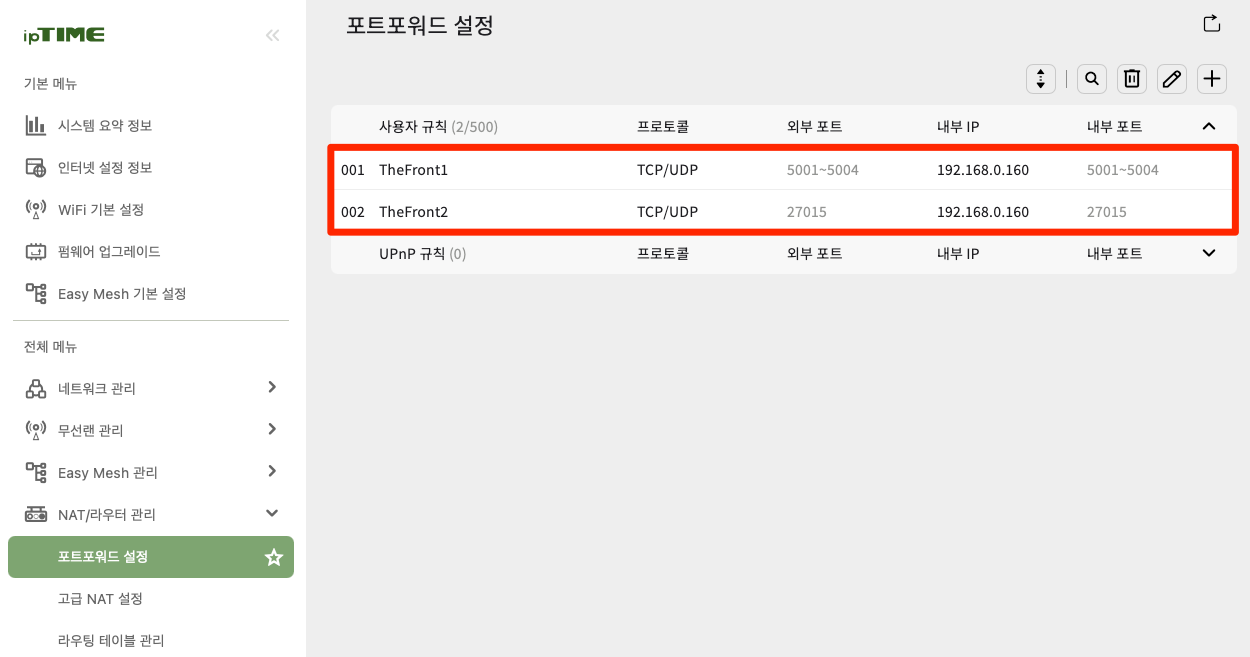
[ 추가 정보 ! ] IPTime이 아닌 다른 공유기 브랜드별 포트포워딩 유튜브 자료
Step2 : 윈도우 방화벽 개방
PowerShell을 '관리자권한'으로 실행하여 아래 명령어를 수행 합니다
New-NetFirewallRule -DisplayName "TheFront1" -Direction Inbound -LocalPort 5001-5004,27015 -Protocol TCP -Action Allow
New-NetFirewallRule -DisplayName "TheFront2" -Direction Inbound -LocalPort 5001-5004,27015 -Protocol UDP -Action Allow
Step3 : 서버 파일 설치
SteamCMD 다운로드
SteamCMD - Valve Developer Community
The Steam Console Client or SteamCMD is a command-line version of the Steam Client. Its primary use is to install and update various dedicated servers available on Steam using a command-line interface. It works with games that use the SteamPipe content sys
developer.valvesoftware.com
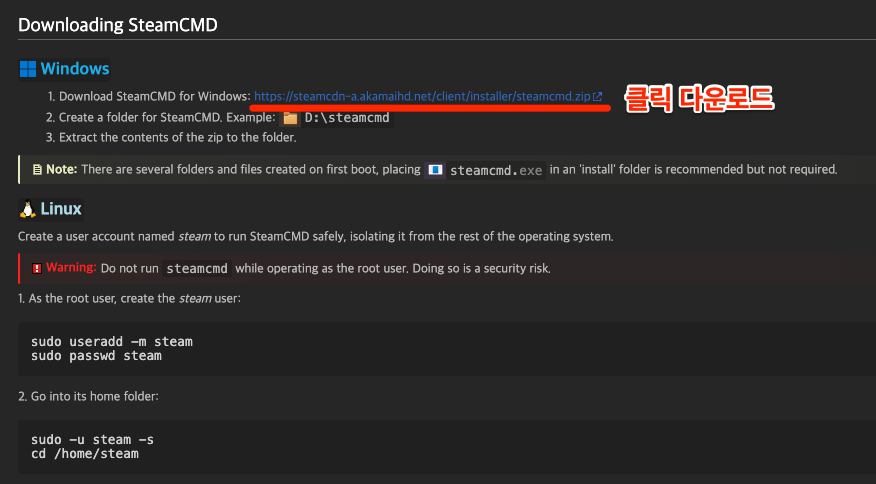
install.bat 파일 생성
steamcmd +login anonymous +app_update 2612550 validate +quit
install.bat 파일 수행 → 서버 파일 다운로드 완료
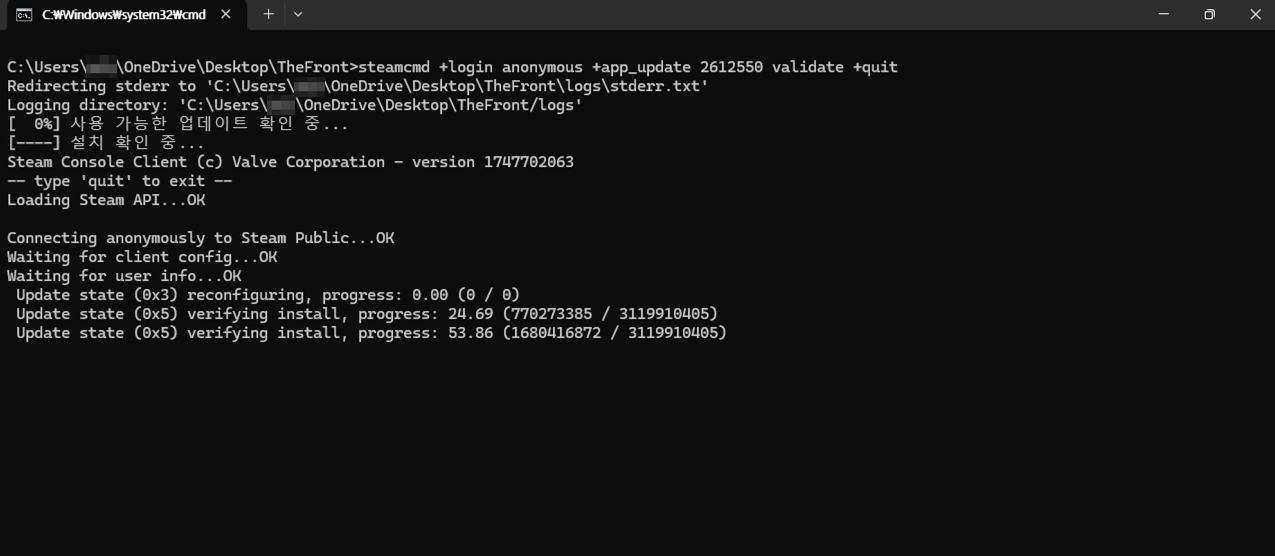 서버 설치중
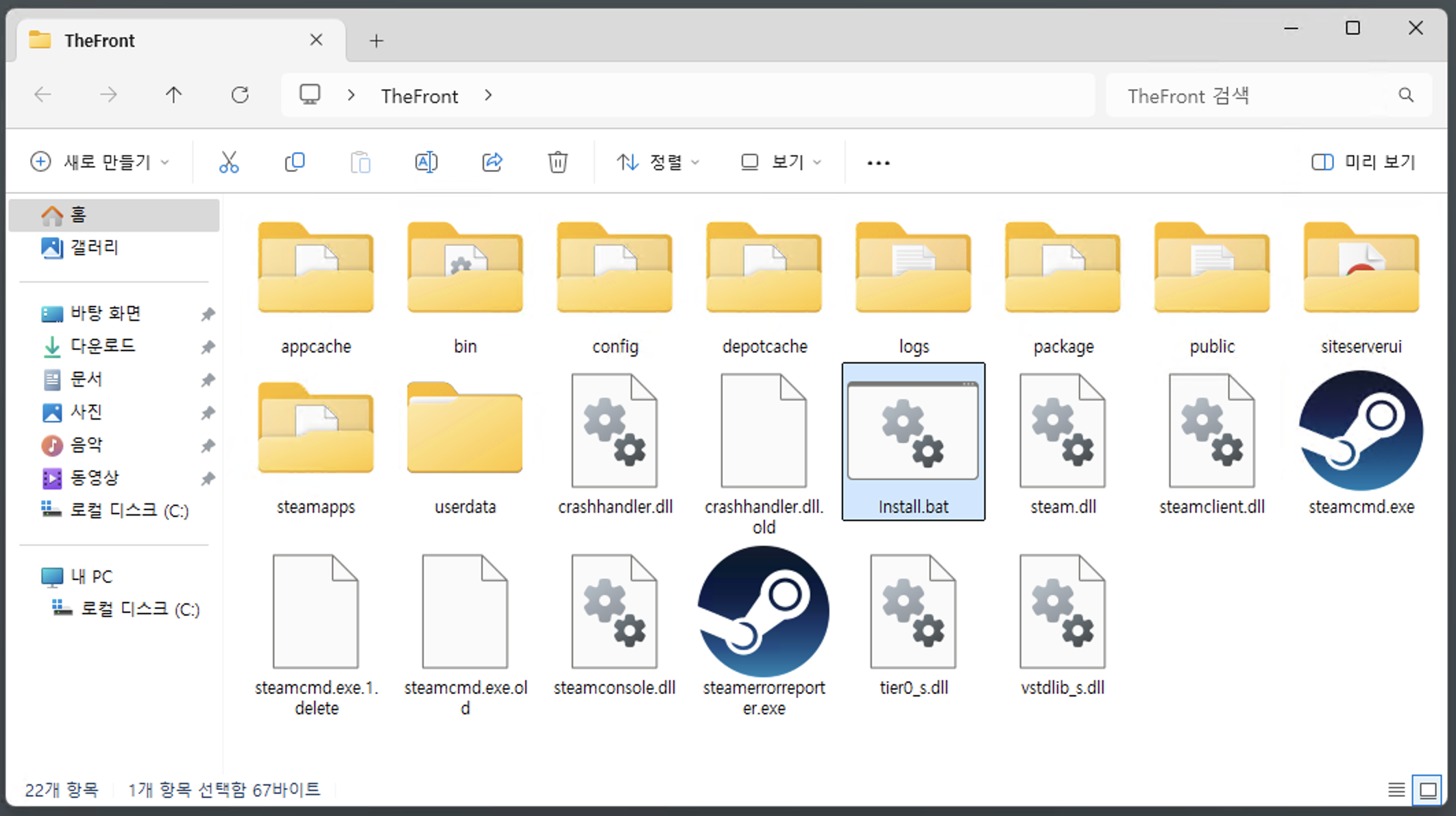 설치가 완료된 모습
Step4 : ServerManager 파일 붙여 넣기
게임실행 → ServerManager 폴더 이동
강의 영상을 참조하여 'ServerManager'폴더를 자신의 Dedicated Server 폴더로 옮긴다.
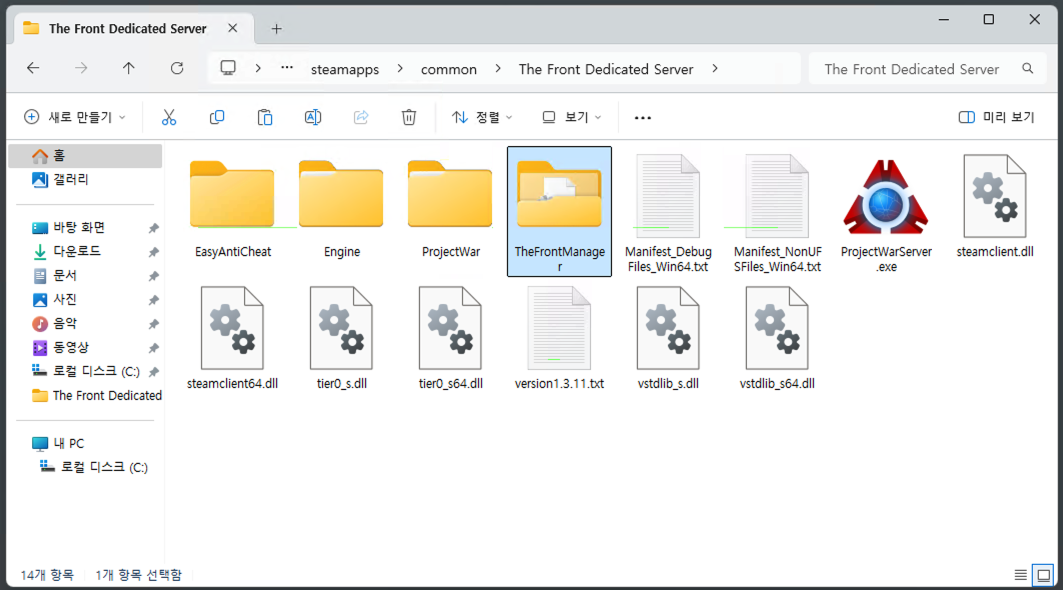 파일을 옮긴 화면
Step5 : StartServer.bat 파일 수정
ServerManager 폴더 안의 StartServer.bat 파일을 수정합니다.
'붉은색' 표기 부분을 자신의 환경으로 변경하세요 → 영상 및 자주하는 질문 포스팅 참조 ( 문서 비번 : 5990 )

@echo off start "TheFront" "..\ProjectWar\Binaries\Win64\TheFrontServer.exe" ProjectWar_Start?DedicatedServer?MaxPlayers=100 -server -game -log -ConfigServerName="MyServer" -EnableParallelCharacterMovementTickFunction -EnableParallelCharacterTickFunction -UseDynamicPhysicsScene -fullcrashdumpalways -Game.PhysicsVehicle=false -ansimalloc -Game.MaxFrameRate=35 -MaxQueueSize=50 -QueueValidTime=120 -OutIPAddress=192.168.56.1 -UserDir="./MyServer/" -ServerName="MyServerName" -QueueThreshold=40 -ServerFightModeType=1 -IsCanSelfDamage=false -IsCanFriendDamage=false -ClearSeverTime="2025-06-15" -Port="5001" -BeaconPort="5002" -ShutDownServicePort="5003" -QueryPort="27015" -SaveWorldInterval=300 -GreenHand=true -SensitiveWords=true -EnableAntiCheat=true -ServerAdminAccounts="123456789"
[더프론트] 자주하는 질문 + 환경설정 파라미터
techtim.tistory.com
Step6 : 서버 배율 수정
ServerConfig_{설정이름}.ini 파일을 메모장으로 열어 수정함
상세 배율은 테크팀 자주하는 질문 포스팅을 참조하세요 ( 문서 비번 : 5990 )
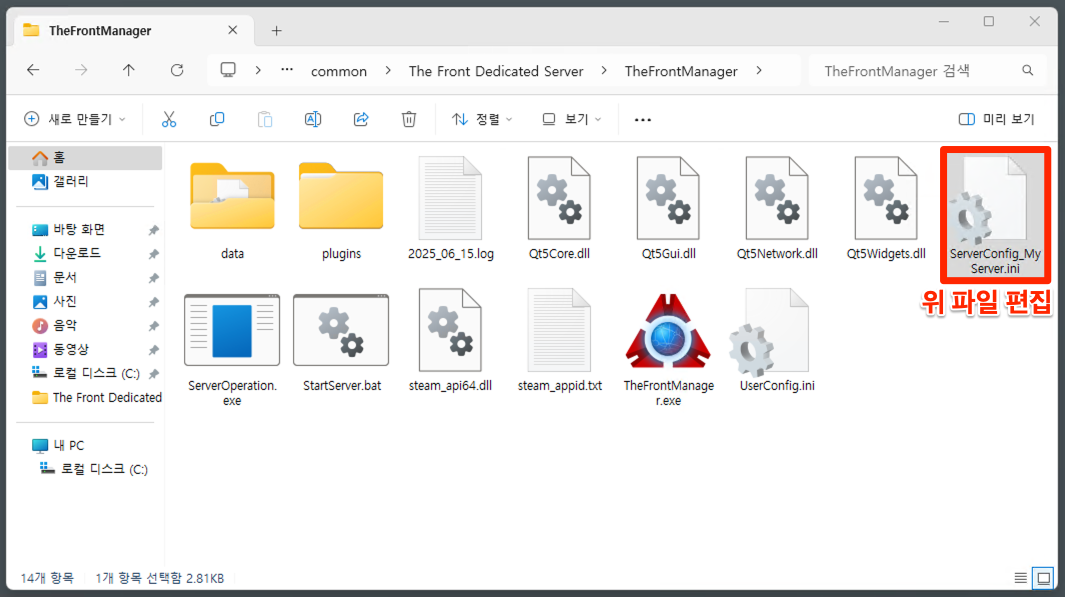
[더프론트] 자주하는 질문 + 환경설정 파라미터
techtim.tistory.com
Step7 : 서버 실행
StartServer.bat 파일 실행
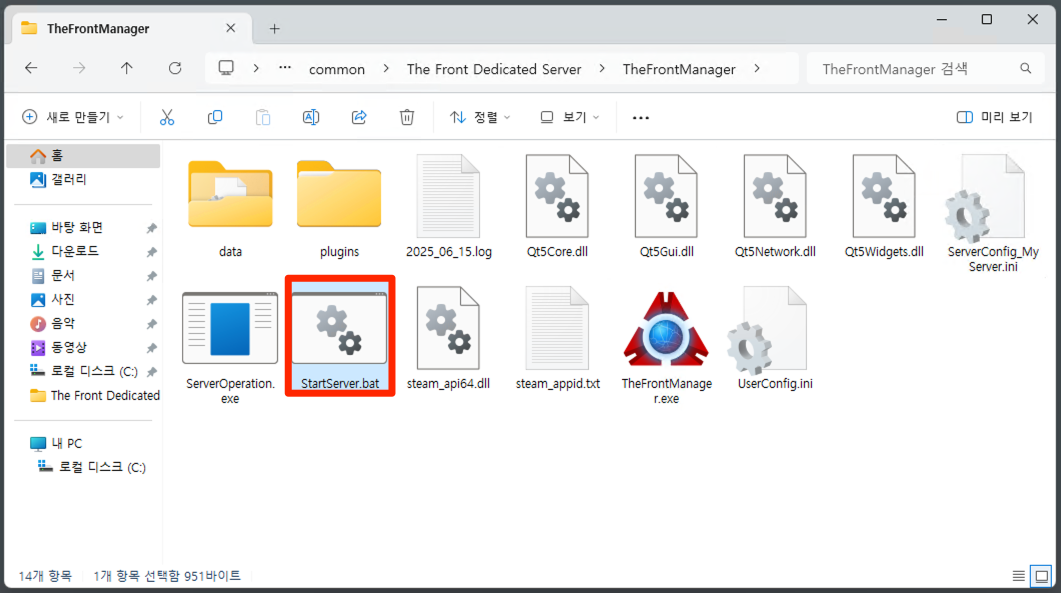
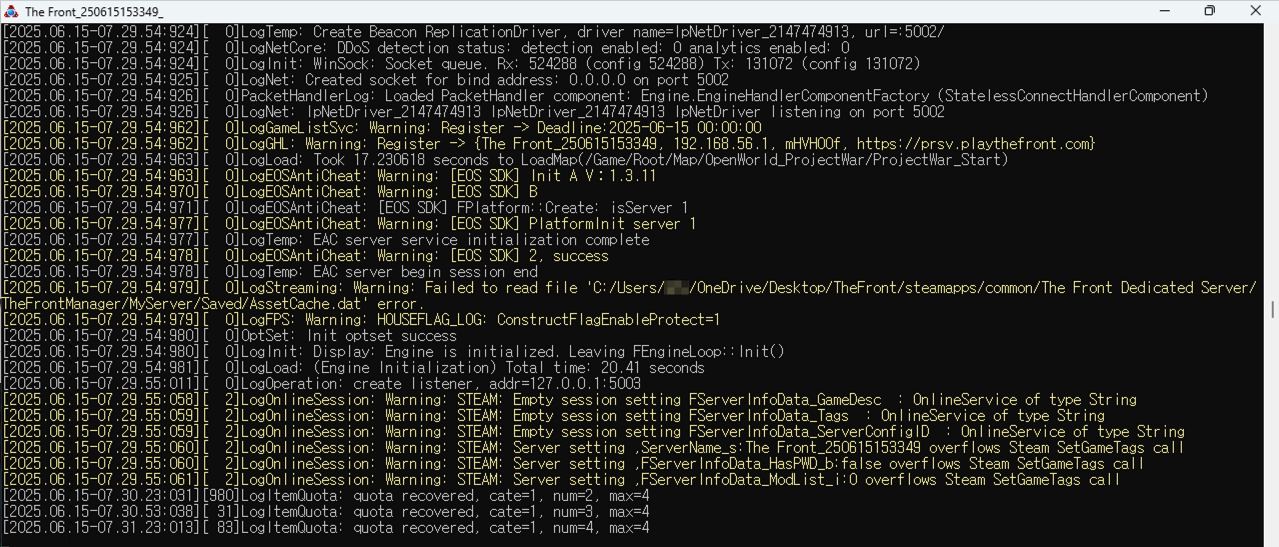 서버 기동 완료 화면의 예
Step8 : 서버 접속 테스트
 Standard Mode 실행
 자신의 서버 검색
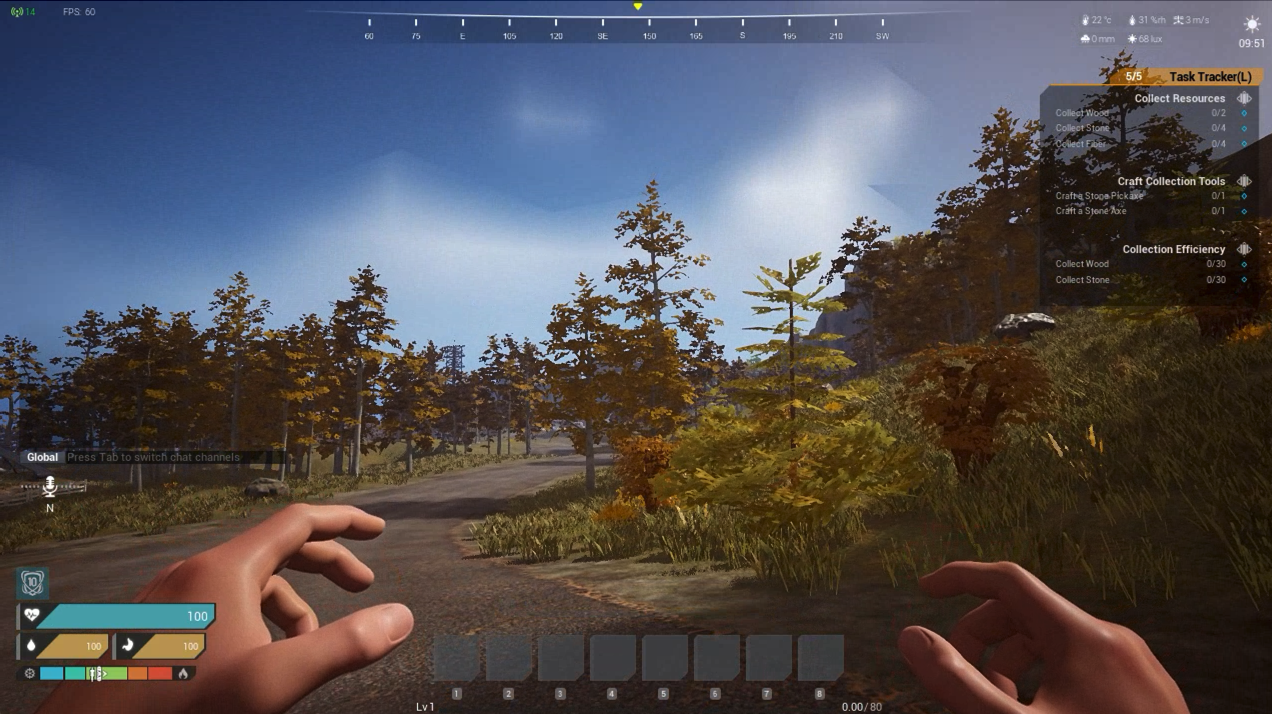 서버 정상 접근 완료